Help & Support | Custom XML Part Manager
1. Introduction
On this page, we'll show you how to use the Custom XML Part Manager Office add-in.
Click here to see the tutorial video.
Custom XML Part Manager is a free add-in for managing Custom XML Parts in Word, PowerPoint, and Excel seamlessly.
2. Supported Platforms
Custom XML Part Manager is available for Microsoft Office 2021 or later on Windows, Mac, and Web.
You’ll benefit most from using it in Microsoft Word for Windows, but if you're a developer, you can also take advantage of it on other platforms.
3. What are Custom XML Parts?
Word, PowerPoint, and Excel documents are essentially XML files. Custom XML Parts are pieces of XML content embedded within these files that cannot be easily accessed by the end user.
In Microsoft Word, Custom XML Parts are very powerful because can bind directly with the document. In other Office applications, they're mainly used by developers to store data in automation processes.
We'll show how you can take advantage of Custom XML Parts Manager in both scenarios.
4. Microsoft Word
You can only use the features shown here in their full extent if you're specifically using Microsoft Word for Windows. Other platforms have limited support for Word content controls.
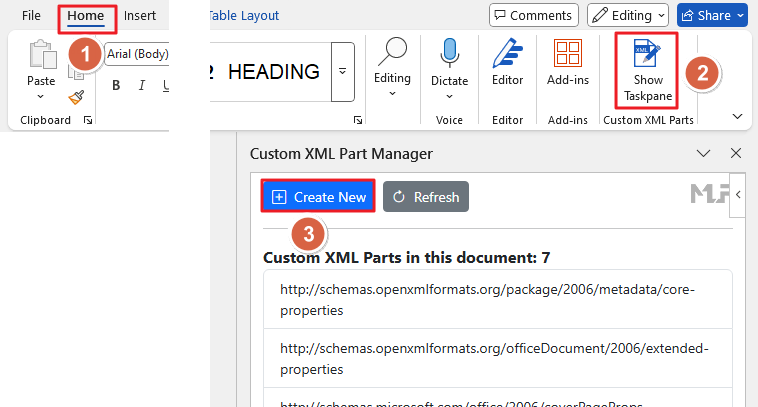
To create a Custom XML Part, go to the Home tab and click the Show Taskpane button (located in the Custom XML Parts group). Then, click the Create New button:
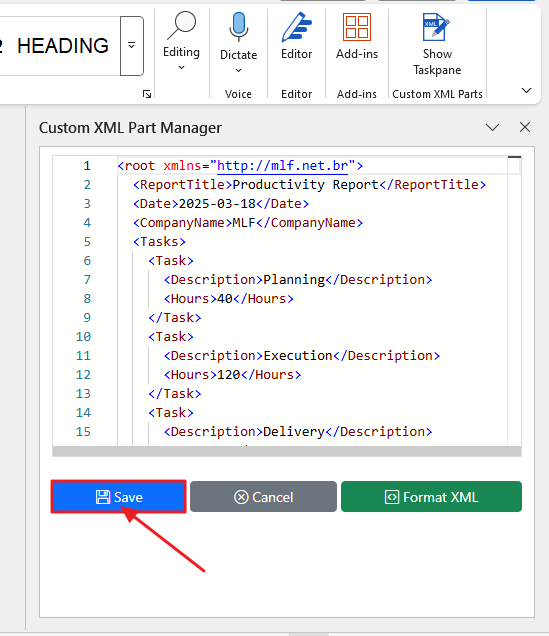
An XML template will be displayed in an editor within the Taskpane. You can edit the XML content and click the Save button to save the XML Part.
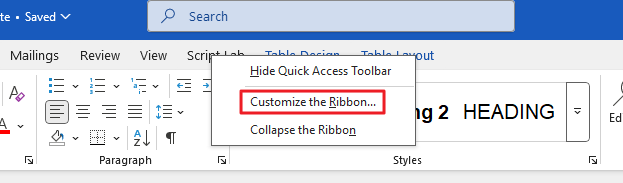
To use the Custom XML Parts feature, you need to enable the Developer tab. Right-click the ribbon and select Customize the Ribbon:
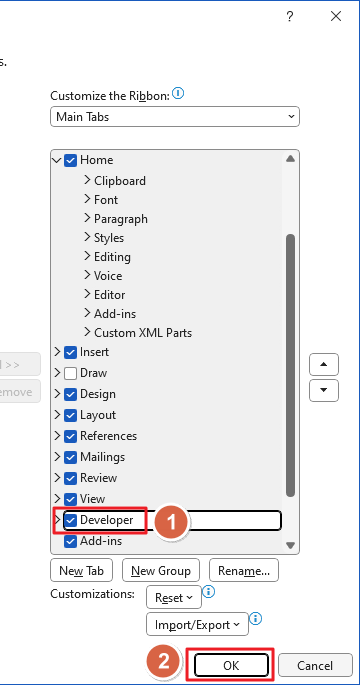
Then, check the Developer checkbox and click OK.
With this, you’ll see the Developer tab alongside the other tabs.
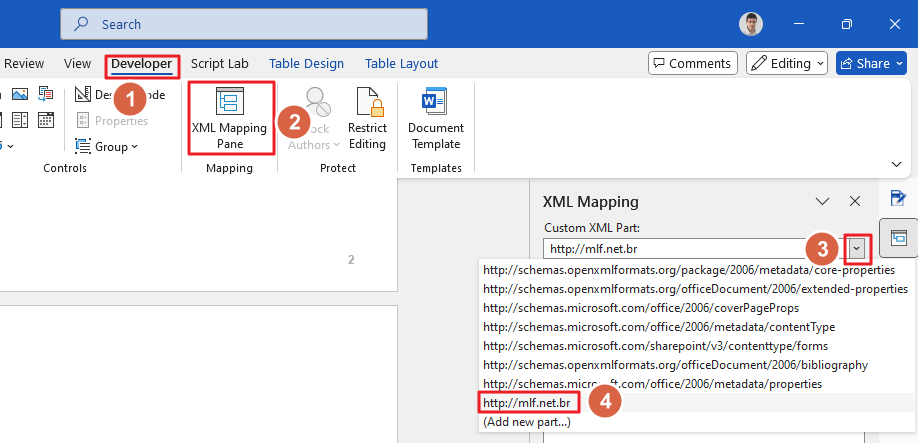
To create content controls bound to your XML Parts, first open the XML Mapping Taskpane by clicking the Developer tab, then in the Mapping group, click the XML Mapping Pane button. Next, click the dropdown in the XML Mapping Pane and select the XML Part you want to bind to the content control:
With the desired Custom XML Part selected, you’ll see its XML nodes. In the document body, highlight the text you want to replace and bind to a content control, right-click the desired node, and then choose Insert Content Control > Plain Text:
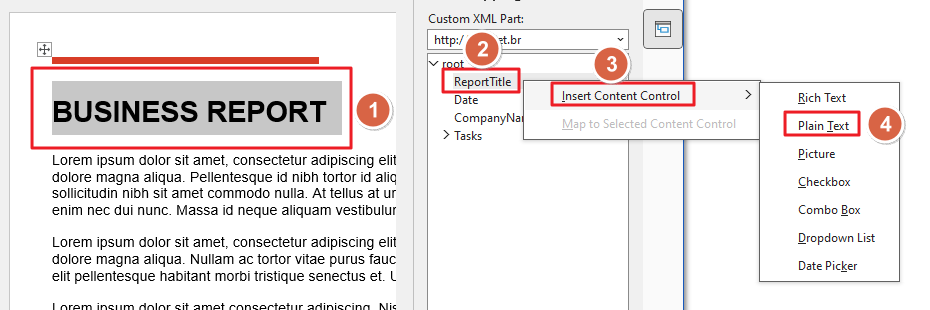
Repeat these steps for each text segment you want to replace with a content control. You can also bind dates, images, and other objects to XML nodes.
As you change the values inside your content controls, the corresponding XML nodes in your Custom XML Part will update automatically. You can verify this by opening the XML using the Custom XML Part Manager Taskpane:

Now, your creativity is the limit! You can create dynamic documents that are easily managed by simply changing the XML content.
5. Other Office Applications
For other Microsoft Office applications, Custom XML Part Manager is primarily designed for developers. Automation processes often store arbitrary data that can be used to populate charts, tables, slides, and other objects, so having a tool to manage Custom XML Parts can be very useful.
6. Contact
If you need support for the Custom XML Part Manager Office add-in, please contact us at admin@mlf.net.